WiFi QR Code: Share Your Network in One Scan
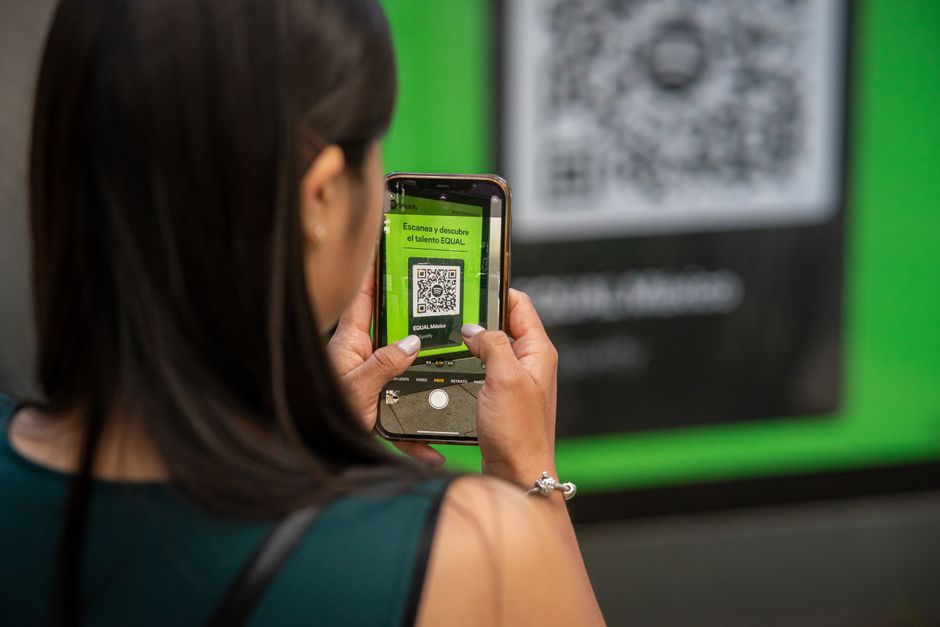
Every café owner, office manager, and Airbnb host knows the ritual. A guest asks for the WiFi, you recite something like "Blue_Falcon_2026!x9" three times, they mistype it twice, and five minutes later someone else asks the same question. A WiFi QR code ends that loop for good: print one code, stick it on the wall, and anyone with a smartphone joins your network in a single scan — no spelling, no typos, no interruptions.
What It Is and How It Works
A WiFi QR code is a standard QR code that encodes three things: your network name (SSID), your password, and the security type (usually WPA/WPA2). When someone points their phone camera at it, the phone reads those values and offers a one-tap "Join Network" prompt. The password is transferred automatically — the guest never sees it, never types it, and never has to ask for it again.
There's nothing to install. Native camera apps on iOS (11 and later) and Android (10 and later) have recognized these codes out of the box since 2017–2019, which covers the overwhelming majority of smartphones in circulation today. Scan, tap, connected — the whole interaction takes about three seconds.
Why It Beats Every Alternative
Compare the options honestly:
- Reciting the password out loud means repeating it dozens of times a day and watching people mistype special characters.
- Writing it on a chalkboard exposes it to anyone photographing your wall — and still forces manual typing.
- Printing it on receipts buries the info in fine print and still requires error-prone entry.
- Running an open network with no password is a security and liability problem you don't want.
A WiFi QR code removes typing from the equation entirely while keeping your network protected. Staff stop fielding the same question, guests connect faster, and your password can be as long and ugly as good security demands — 25 random characters cost the guest nothing, because nobody types them.
How to Create a WiFi QR Code with Qribly
The whole process takes under two minutes:
- Go to https://qribly.com/wifi-qribly — it's free to start, and no design skills are required.
- Enter your network name (SSID) exactly as it appears in your router settings. It's case-sensitive.
- Type the password and select the encryption type — WPA/WPA2 for almost every modern router.
- Customize the design: add your logo in the center, switch to your brand colors, and pick a frame with a call to action like "Scan for free WiFi."
- Test it with your own phone before printing. Always scan once from arm's length.
- Download in high resolution (PNG for screens, SVG or PDF for print) and place it where guests actually look.
That's it. Print at a minimum of 3 x 3 cm (about 1.2 inches) and keep a margin of empty space around the code so cameras can lock onto it quickly.
Where to Place It: 7 Ideas That Work
- Table tents and menus in cafés and restaurants — guests connect before they order, then linger longer.
- Reception desks and waiting rooms — clinics, salons, garages, anywhere people sit for 15+ minutes.
- Hotel rooms and vacation rentals — one framed card replaces the welcome-binder scavenger hunt.
- Office meeting rooms — visitors and contractors join the guest network without pinging IT.
- Event booths and conference stands — high traffic, zero staff time spent on connectivity questions.
- Coworking spaces — onboard new members in seconds at every desk cluster.
- Retail fitting-room areas — keep shoppers browsing online in-store when mobile signal is weak.
Pro Tips Before You Print
Use a dynamic QR code rather than a static one. With a static code, the credentials are baked into the pattern forever — change your password and every printed code dies. A dynamic code from Qribly stays editable after printing: rotate your password quarterly (you should) and update the code in your dashboard without reprinting a single sticker. If you're weighing the two options, here's a full breakdown of dynamic vs static QR codes.
Dynamic codes also unlock scan analytics: see how many people connect, at which location, on which days. If your window sticker gets 40 scans a week and the table tents get 4, you've just learned where your customers' eyes go — insight that's useful far beyond WiFi.
Two more details that matter: keep high contrast (a dark code on a light background scans best), and never place the code behind reflective glass at an angle.
Frequently Asked Questions
Is it safe to share my WiFi password through a QR code? It's safer than the alternatives. The password isn't displayed in plain text, so it can't be photographed off a chalkboard or overheard. For businesses, pair the code with a separate guest network so visitors never touch the network your POS or internal systems run on.
Do guests need a special app to scan it? No. The built-in camera on any iPhone running iOS 11+ or Android phone running Android 10+ reads these codes natively. Older Android devices can use any free QR scanner app.
What happens if I change my WiFi password? With a static code, you reprint everything. With a Qribly dynamic code, you log in, update the password once, and every printed code keeps working — that alone is the biggest reason to choose dynamic.
Stop Spelling Your Password Out Loud
There is no reason anyone should ever type your network password again. Create your free WiFi QR code at qribly.com/wifi-qribly, brand it with your logo, and put it where your guests already look. Two minutes of setup — and you'll never hear "what's the WiFi?" again.